contents
Lumiera (as seen) from Outer Space
— 2012 / 2025 —
About this Document
Lumiera is innovative video editing software, still under active development by an open-source community. This document acts as an introduction. We try to start with a broad overview, then explain some core concepts towards the end. We describe planned features here without explicitly tagging them as such and we omit technical details. There is a Glossary of common terms; readers curious about the inner workings might want to continue their path of exploration into The Inner Core
Vision
Lumiera strives to be a professional non-linear video editing system. It is important to note that by “professional” we do not imply “commercial” nor “industrial”. We do, however, wish to convey an attitude or frame of mind in the approach made to such work; not its goal or purpose.
Professionalism implies doing work with sincerity and being subject to any kind of wider goal, demand, or purpose. When it comes to editing film, this wider goal, demand, or purpose might be artistry, a narration or have meaning to convey, a political message or commercial revenue — it might be something to reveal to your audience, to let them see, feel and perceive.
Bearing this idea of professionalism in mind, we can identify a number of key aspects film production tools will have to exhibit to aspire to be labelled professional:
- Reliability
-
All work must be secure and safe against any software glitches, incompatibility or instability. Lumiera should be reliable, very stable and resistant to software crashes. Even power failures should not result in data or work loss.
- Quality
-
High-quality, cinema grade digital video material requires crisp-quality results with no concessions made throughout the entire workflow that might compromise quality of the final work. A common requirement is the ability to reproduce all rendering calculations down to the last bit.
- Performance and Productivity
-
Professionals want to get things done on time, but with control over all detail. The fine balance of these goals is a central goal of workflow design and usability.
- Scalability and Adaptability
-
Projects and budgets differ, hardware advances; and Lumiera must scale in many ways and make optimum use of the resources that are available. From small Laptops to multi-core computers up to render farms, Lumiera must be adept to reap the maximum from the hardware at hand.
- Durability and Sustainability
-
The rapid pace at which software and hardware rampage forward is surely a warning to new software projects and the dangers of locking into any current technological “fashion” to achieve a “cheap” goal, feature or performance boost. Once the fad fades, the software woes begin. The software must be able to engage new technological developments without any compromise to functionality or backward compatibility.
Fundamental Forces
The Lumiera design is guided by a small number of basic principles. Keeping these principles in mind will help you understand how more interesting things can be built up from these fundamental principles.
Open Ended Combination of Building Blocks
Lumiera is not so much defined in terms of features. Instead it can be better seen as a workshop in which the emphasis is on individual basic building-blocks that can be combined together in interesting ways to form more complex structures. These basic modules, entities or objects each have a distinct type which explicitly identifies the possible connections between modules. Within these constraints, any combination is possible without hidden restrictions.
However, the application strives for a certain degree of internal coherence.
Lumiera is not a set of Lego bricks allowing you to build “just anything”
(in a clumsy way) — nor is it the next universal programming platform or
application framework driven by pre-canned success stories, where you
“just push the button” and magic does the rest.
Medium Level Abstraction and Project Specific Conventions
The building blocks behind Lumiera combine to create a moderate level of abstraction; a user may use the GUI to manipulate several elements directly — not only the clips and effects, but also individual effect parameter automation, masks, layering, and even placements ← used to stitch objects together, which is comparatively low-level. Such moderate abstraction encourages the user to understand the inner workings, while shielding the user from technical details such as header format conversion or access to individual channels.
To complement this approach, Lumiera does not rely on hard-wired, global conventions — rather we allow the building up of project specific conventions and rules ← to fit a given requirement and preferred working style. However, in its default configuration, Lumiera will be supplied with a conventional UI template and key bindings to ease the learning curve for new users.
Rendering is Graph Processing
Processing video (and audio) data can be conceived as a graph (more precisely a directed acyclic graph). In this model of video processing, data flows along the edges of the graph and is processed at the nodes.
The following figure depicts manipulating video data as a graph. Input data is retrieved from the source nodes, which are located at the top of the figure. From there, the data moves on to the next stage, where video and audio data and meta information is pre-processed. All the further operations on data can be represented by nodes, and data flows from one operation to the next along the nodes of the graph.
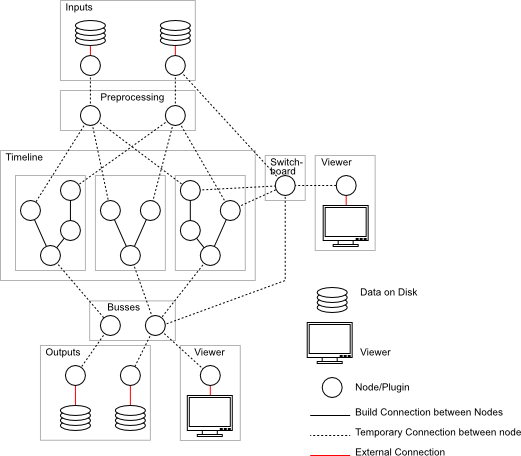
When we look at this model we discover that we only need to build ← such graphs, the nodes themselves can be seen as black boxes and will be implemented by plugins ←. Moreover one can pre-configure subgraphs and handle them as a single entity ←.
In Lumiera everything will be translated into such a graph. Footage will be demultiplexed ← at the first node, thereafter passed to the actual processing nodes for calculating effects, masks and layering, and finally be forwarded to the encoding stage ← and on to the multiplexer ← which assembles the final video.
Pulling not Pushing
At a first glance, it looks fairly natural to set up the graphs ← as described above. Data can then be pushed into the system through the input nodes and the final result can be seen at the output node. Several multimedia frameworks use this approach. However this scheme exhibits a number of shortcomings which make it inappropriate for non-linear video editing.
Lumiera takes a different approach. Data is pulled through a pipe: any rendering request starts at the output node and makes its way back up through the graph to the inputs. This scheme offers a number of advantages over the naive scheme.
The visible Universe
Lumiera consists of three major parts:
-
The Stage layer for user interaction (GUI)
-
The Steam layer for translation and orchestration
-
The Vault layer for adaptation and data processing
In this section, we discuss the user’s perspective when working with the GUI.
Although Lumiera ships with a conventional desktop UI by default, we do not presume that this GUI will be suitable for all uses. We expect there to be several specialised UIs eventually, designed to handle very specific kinds of tasks.
Indeed, Lumiera can even work satisfactorily without a GUI, for example, for special purposes (e.g. as headless render-node ← or frameserver ←). A script interface will be added at some point to facilitate automated processing.
Now it is time to take a look at the preliminary Lumiera GUI:
Timeline with nested track structure

Since development is currently focused on technical integration, we expect this UI to change significantly once we can focus more on the topic of workflow. Note furthermore that the interface is themable and we plan to ship a stylesheet with a neutral gray colour scheme.
At first glance, the GUI might seem somewhat overwhelming, something similar to the cockpit in a jumbo jet. However, all the controls and panels can be subdivided into groups according to their functionality, as discussed in the following subsections.
Viewer
The viewer is an area where footage and the assembled edit can be played-back and reviewed. Obviously, support for audio will also be provided. As there are many sources that can be displayed, a viewer is attached to a source via the viewer switch board. Timelines, probe points, wire taps and individual clips are examples of sources that can be attached to a viewer. Moreover, the number of viewers open at any one time is only limited by the hardware, and each viewer can be collapsed or hooked up to a beamer or monitor.
Transport Controls
Transport controls are devices that are controlled by widgets or by some input device (MIDI, control surface, etc) so the look-and-feel of the transport control widget may vary, depending on what the transport controls have been assigned to. Irrespective of their look-and-feel, they are connected to a play controller.
The preliminary layout in the current GUI is rather provisional — a final decision has yet to be taken on where the transport controls will be located. In later versions of the standard GUI, the transport controls will change. There is even a possibility that the transport controls will be allocated their own GUI element.
A play controller coordinates playback, cueing and rewinding. Transport controls are ganged when they attach to the same play controller.
Timeline View
A timeline is a container that provides a time axis and an output. There may be connections to various output designations, each with a different configuration. A more elaborate production setup will use several timelines, one for each distinct output configuration. A timeline does not temporally arrange material, this is performed by a sequence, which can be connected (snapped) to a timeline.
A typical film will define many sequences, but will only have a few timelines. A sequence contains a number of “tracks” which are ordered in a hierarchy, which we call “a fork”. Within Lumiera “tracks” do not have any format associated with them and more or less anything can be put into a “track” (fork). Consequently, audio and video material can equally be assigned to such a fork, there is no discrimination between audio and video in the Lumiera concept of a “track”.
A timeline must be assigned to viewer and transport control if playback viewing is desired. In most cases, these connections are created automatically, on demand: Just playing some footage for preview creates a simple internal timeline.
Global Pipes
The GUI provides a separate bus view which displays the global pipes. Global pipes are master buses for each type of output—which includes both sound and image—and collect the outputs of subgroups together in a manner similar to an audio mixing desk. Any pipe is just a means of collecting, mixing or overlaying output produced by other pipes. A simple (linear) chain of effects can be applied within each pipe.
Most pipes are managed automatically, e.g. the pipes corresponding to individual clips, or the pipes collecting output from transitions, from nested sequences and from groups of forks (“tracks”). At some point, at the timeline level, all processed data is collected within the aforementioned global pipes to form the small number of output streams produced by rendering and playback. Each timeline uses a separate set of global pipes.
Asset View
An Asset View can be conceived as the timeline’s book keeper: it manages the various constituents in the timeline. Moreover, in addition to managing timeline constituents, raw material, clips, bins (folders) and effects are managed by the Asset View, i.e., typical management operations including, deleting, adding, naming, tagging, grouping into bins, etc. all occur here.
There are various kinds of assets available in any project:
-
source media/footage/soundfiles
-
all available effects and transitions
-
user defined “effect stacks” and effect collections ("effect palette")
-
internal artifacts like sequences and automation data sets
-
markers, labels, tags and similar kinds of meta data
Actually, the same underlying fork data structure is used to implement the asset view with folders, clip bins and effect palettes, and the timeline view with tracks, clips and attached effects. Technically, there is no difference between a track or a clip bin — just the presentation appears different. Timeline contents can be viewed, just like assets, for bookkeeping purposes, and the contents of a clip bin can be played like a storyboard.
Dark Matter
The material in this section provides a cursory view of features not required by a typical user, but of more importance to people looking under the hood (advanced users, software developers)
Most of the material in this section is to be found in the Steam-Layer and in the Vault.
Session Storage
The current representation of a project resident in memory is internally known as a session, whereas from a GUI user perspective, this is known as a project. In this section, we will use the term “session” as we are discussing the internals of Lumiera here.
Everything is stored in a session. If a user saves a session, then there should be no difference to the user whether they continue working or throw all their work away and load the session that has just been saved. In other words “everything is stored in a session!”
This ambitious goal has a number of advantages. If all steps are to be stored, then all steps must be available as an object to be stored. We can perform operations on these objects. For example, unlimited ability to undo previous steps, selective undo of previous steps or the possibility of merging various steps might even be a possibility. On a practical note, work on a project at the office and work on the same project at home can be merged each morning and evening.
Session storage is envisaged to operate similar to a database or journalling file system. Any operation will be logged prior to execution. This protects the session contents against corruption and allows for automated recovery in case a crash occurs. The actual storage itself is delegated to several backends. One of these backends implements a binary storage format for performance reasons, while another exposes all session contents in textual, human readable form. The storage format is designed in a way to ensure a certain degree of compatibility while the application evolves.
Placements
All the elements and “media objects” in the project are stitched together by some common “glue”: the Placements. Any placement may contain a list of conditions on how to locate the placed object, examples being time-absolute/relative, relative to another object, or relative to some specific source media frame. Yet the conditions contained in a placement are not confined to time positions alone, they can define other kinds of position, like a sound pan position or some hint on data routing. Generally speaking, a placement pins the element into various dimensions within a configuration space
All of the session model contents are attached by placement, forming a large tree. Placements need to be resolved to find out the actual position, output and further locational properties of an object. Missing placement information is inherited from parent placements in the session tree. This causes a lot of relational and locational properties to be inherited from more global settings, unless defined locally at a given object: time reference point, output destination, layering, fade control, audio pan,…
Rendering Engine
to be written rendering…
Builder
The inner workings of Lumiera exhibit some striking similarities to the implementation of a programming language compiler. On one side, there is a tree-like data structure which represents the high-level meaning of the edit currently in the works. We call this data structure the “high-level model” — it is comprised of timelines and sequences, tracks, bins, clips and effects. On the other side, the render engine requires a properly wired network of low-level processing nodes, where every connection has been made explicit, and any indirection has been resolved.
The Builder is the entity performing the translation between these both flip sides of the coin: it creates the low-level processing graphs by traversing and evaluating the relevant parts of the high-level-model. Indirections will be resolved and connections will be made explicit by querying the rules system.
Rules System
to be written
Input-Output Subsystem
Lumiera will process large quantities of data and it is of critical importance to perform this efficiently. The input and output subsystem are all processed in the vault layer, in fact, this is one very important function provided by the back end.
The typical Lumiera user will have many clips, in various configurations located at various places. All this data will have to be stored by the vault layer, moreover all this data will have to be rapidly retrieved from storage and provided to the user. The demands on memory are high: huge chunks of data, that can be quickly stored and equally quickly fetched, even if stored over longer periods of time. Moreover, due to the scalability requirement of Lumiera, this process will have to perform adequately on lower-end hardware, and perform efficiently on higher-end hardware.
Lumiera will break down processes that need to be processed into smaller units called frame job. Typically, there will be many hundreds of jobs waiting for processing at any one time. These jobs are queued for processing and the order in which this is performed is managed by the scheduler. This is all done in the vault layer.
Apart from memory, the vault will be responsible for accessing and saving files. It is essential to do this efficiently. This will be carried out in the vault layer using low-level mechanisms.
Configuration
to be written
Plugins/Interfaces
What are Plugins?
A Plug-in is a kind of generalisation of a library.
All applications use, to varying degrees of intensity, libraries. A programmer will not reinvent the wheel each time he sits down to programme an application. A programmer will typically borrow and use features and functionality from other programmers — or even borrow from himself, stuff written long ago in the past. Such features are collected together in libraries.
A library is used in an application by linking the library into the application. However, there are different ways to link a library: linking statically and linking dynamically.
Static Linking is done while the application is being built, or
compiled. It is performed by the linker, which executes as the last step
of the compilation process. The linker can perform some sanity checks and
some optimisation. In the end, the functionality of the library is “baked into”
the resulting executable.
There are a number of disadvantages associated with static linking. Features and
libraries are being constantly improved. If the application wants to use new
features, it will have to be recompiled with the new library which provides the
new features.
Dynamic Linking helps avoid the necessity of having to recompile. If a new, improved library becomes available, all the user has to do is to install the new library onto the operating system, restart the application and the new features can be used by the application. The features provided by a dynamic library are loaded when the application starts to run.
However both methods exhibit a number of shortcomings. Wouldn’t it be better if all features could be loaded only when needed? This scheme of making features available to an application on-demand is known as run-time linking. A component intended to be added this way, at run time, by the user, is known as a Plug-in. Plug-ins offer other benefits: the application can continue to use both the old features and the new features together, side-by-side, by using the version number associated with the plug-in. Furthermore, Plug-ins can load other Plug-ins and thus extend the application in creative ways, beyond anything the original developers of the application had planned.
Most modern applications use plug-ins, some are heavily dependent on plug-ins and only provide limited functionality without any plug-ins. Lumiera will not reinvent the wheel. One major goal is to provide considerable functionality via well-designed, external code supplied to Lumiera by plug-ins.
Integration with external libraries, frameworks and applications
to be written
Further reading
Glossary
The above outline of the design uses a lot of special terms and common terms used with specific meaning within Lumiera. To ease understanding, we’ve collected together a glossary of common terms.
Tutorials and User Manual
For most users, the next step would be to skim through the user manual and to install the application. But we are not this far yet, unfortunately. As of 1/2013, Lumiera isn’t usable in any way. Later, when we approach the alpha and beta development phase, we’ll devote some attention to a user manual and provide a sections on tutorials.
The Inner Core
Developers and Readers curious about the inner workings of the application might want to have a look into the overview document of our technical documentation section. Learn more about The Inner Core…